How to make a private photo album on iPhone
Quick answer
You can’t lock an individual album in the iPhone Photos app; the only locked places are the Hidden and Recently Deleted albums. The closest built-in private album is the Hidden album, which opens with Face ID, Touch ID or your passcode. For more than one private album, or a code that isn’t your phone’s passcode, use a locked note or a vault app.
Make a private album that’s a room of its own
Hideroom is coming to iPhone. One email when it launches, then we delete your address.
On this page
If you’re wondering how to make a photo album private on iPhone, here’s the honest answer first: you can’t lock an individual album in Apple’s Photos app. Albums and album folders have no lock or password option. Apple locks exactly two places in Photos, the Hidden and Recently Deleted albums, and both open with your iPhone’s Face ID, Touch ID or passcode. What you can do is choose the right workaround, and each one gives you something different. This guide covers four, with steps for iOS 27, the current version.
Can you make a photo album private on iPhone?
An album in Photos is a way of organising your library, not a separate store. Apple’s guide describes creating, renaming, sorting, sharing and deleting albums, and grouping them in folders, but there’s no setting to lock one. If you use iCloud Photos, your albums also sync to every device signed in to your Apple Account.
So the question becomes: which kind of private do you need? Out of sight when you hand your phone over? A code that isn’t your passcode? Several separate private albums? The options below line up against those.
Option 1: use the Hidden album as your private album
The Hidden album is the closest thing to a private album iPhone has built in. On iOS 16 and later it’s locked by default.
- Open Photos, tap Select, and choose the photos for your private album.
- Tap the More button (three dots), then tap Hide.
- To open them later, tap Collections, scroll to Utilities, tap Hidden, tap View Album, then unlock.
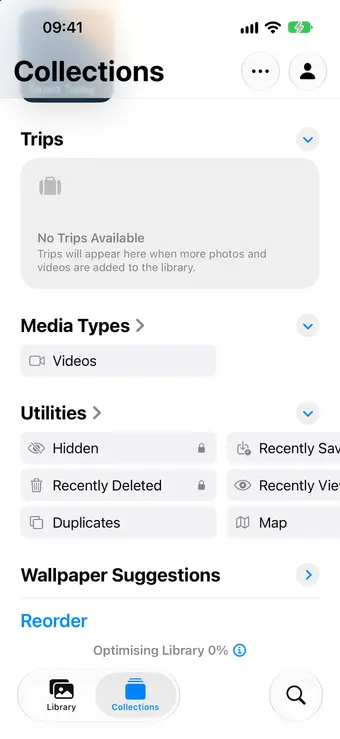
To take the album off screen entirely, go to Settings, tap Apps, tap Photos, tap Albums, and turn off Hidden Album.
The trade-offs. There’s only one Hidden album, so you can’t have a private holiday album and a separate private documents album. Hidden photos don’t show in your other albums any more. The lock is your phone’s passcode, so anyone who knows it can open the album. And with iCloud Photos on, hidden photos sync to your other devices like everything else. There’s more on all of this in how to hide photos on iPhone.
Option 2: lock the whole Photos app
Since iOS 18, you can make Photos ask for Face ID before it opens. That makes every album private, at the cost of locking the ones you didn’t mind people seeing.
- On the Home Screen, touch and hold the Photos icon.
- Tap Require Face ID (or Touch ID or Passcode).
- Tap Require Face ID again, then authenticate.
The trade-offs. It’s all or nothing: you can’t lock one album and leave the rest open. It still opens with your passcode. And the lock only applies to that iPhone; the setting doesn’t sync to your other devices. Full steps are in how to lock photos on iPhone.
Option 3: a locked note for each private album
Notes can lock individual notes, and you can choose a Notes password that’s different from your phone’s passcode. That makes it the only built-in way to have more than one private “album”, each with photos in it.
- Open Settings, tap Apps, tap Notes, tap Password, then choose Use Custom Password or Use Device Passcode.
- In Notes, create a note per album and add photos with the Attachments button.
- Tap the Note Actions button, then tap Lock.
The trade-offs. Apple won’t lock notes that contain video, audio, PDF or file attachments, so this is for photos only. Note titles stay visible in the list. The originals are still in your library until you delete them, and then they sit in Recently Deleted for 30 days. If you forget a custom Notes password, Apple says it can’t help you recover those notes. And a note isn’t built for browsing lots of photos the way an album is.
Want to know the day Hideroom is ready?
Hideroom is coming to iPhone. One email when it launches, then we delete your address.
Option 4: a vault app
A photo vault app gives you what Photos can’t: separate private albums, behind a code that isn’t your phone’s passcode, with the photos moved out of your library rather than hidden in it.
The trade-offs. You’re trusting another company with photos that may be your only copies, so check two things before you move anything: how it encrypts, and how it backs up. Plenty of people lose a vault when they change phones (see do hidden photos transfer to a new iPhone). Look for a backup you can see is working and a way to restore that doesn’t depend on the company still being around.
Where Hideroom fits
Hideroom, coming to iPhone soon, works this way. Each pattern you draw opens its own room, and each room can have its own albums, so a private album lives inside a room only you can open. Everything is encrypted on the phone with AES-256-GCM, the encrypted backup in your own iCloud is checked after every upload, and a nine-word recovery phrase restores a room from it on a new phone. Our security page explains the details.
What not to use as a private album
- Shared Albums. They feel private because you pick who’s invited, but Apple says Shared Albums don’t support Advanced Data Protection, so the encryption keys for that content are held by Apple.
- Album folders. Putting an album inside a folder only tidies the list. Anyone who opens Photos can open the folder.
- Turning off the Hidden Album switch on its own. It removes the album from view, but the setting is easy to find and switch back on.
Which one should you pick?
| You want | Best fit |
|---|---|
| A few photos out of sight, no setup | Hidden album |
| Nobody browsing your camera roll | Lock the Photos app |
| A separate code for a few pictures | Locked note with a custom password |
| Several private albums, videos, a code of their own | A vault app with a backup you can check |
For most people, the Hidden album plus a locked Photos app covers everyday privacy. If you need a code nobody else knows or more than one private album, that’s where a vault app earns its place.
Questions
Can I put a password on one album in Photos?
No. Apple’s Photos app doesn’t offer a lock for individual albums or album folders. Only the Hidden and Recently Deleted albums are locked, and they open with your iPhone’s Face ID, Touch ID or passcode.
If I hide photos, do they stay in my other albums?
You won’t see them there. Apple says hidden photos don’t appear anywhere else in Photos, including other albums, until you unhide them.
Is a shared album private?
Only in the sense that you choose who’s invited. Apple says Shared Albums don’t support Advanced Data Protection, so their encryption keys are held by Apple. Don’t use one as a private album.
Can I have more than one private album on iPhone?
Not with the Hidden album, because every hidden photo lands in the same place. You can lock several notes, each holding different photos, or use a vault app that supports separate albums or vaults.
Written by Zaniar with AI research help, and checked against the sources below on 23 October 2026.How we write guides
Related guides
Hiding photos · 5 min read
How to hide photos on iPhone
Hide photos on iPhone with the Hidden album, lock it with Face ID, and learn what it doesn't protect against. Checked against Apple's guides for iOS 27.

Hiding photos · 5 min read
How to lock photos on iPhone
Lock photos on iPhone with Face ID, lock the whole Photos app, or password protect pictures in Notes. Every option for iOS 27, and what each one misses.
Backups and moving phones · 5 min read
Do hidden photos transfer to a new iPhone?
Yes, hidden photos move with your library. How it works with iCloud Photos, Quick Start, iCloud backup or a computer, and what to check first.


Sources
- Create and work with photo albums on iPhone, Apple iPhone User Guide, checked 23 October 2026
- Delete or hide photos and videos on iPhone, Apple iPhone User Guide, checked 23 October 2026
- Hide photos on your iPhone, iPad, Mac, or Apple Vision Pro with the Hidden album, Apple Support, checked 23 October 2026
- Lock or hide an app on iPhone, Apple iPhone User Guide, checked 23 October 2026
- Lock your notes on iPhone, Apple iPhone User Guide, checked 23 October 2026
- iCloud data security overview, Apple Support, checked 23 October 2026
Spotted something out of date? Email support@hideroom.app.