How to lock photos on iPhone
Quick answer
To lock a few photos, hide them: the Hidden album is locked with Face ID, Touch ID or your passcode on iOS 16 and later. To lock the whole Photos app, touch and hold its icon on the Home Screen and tap Require Face ID (iOS 18 and later). For a password that isn’t your phone’s passcode, use a locked note with a custom password or a vault app.
Lock your private photos behind a door only you can open
Hideroom is coming to iPhone. One email when it launches, then we delete your address.
On this page
There are three ways to lock photos on iPhone without installing anything, plus a Screen Time workaround you’ll often see suggested, and they lock very different things. You can lock the Hidden album, lock the whole Photos app, or lock photos inside a note. This guide covers how to lock photos on iPhone with each one on iOS 27, the current version, and the one weakness most of them share.
How to lock photos on iPhone: your options
| Option | What it locks | What opens it | iOS version |
|---|---|---|---|
| Hidden album | Photos you choose to hide | Face ID, Touch ID or your passcode | iOS 16 and later |
| Lock the Photos app | The whole app | Face ID, Touch ID or your passcode | iOS 18 and later |
| Locked note | Photos you add to a note | Your passcode or a separate Notes password | Any recent version |
| Vault app | Photos you move into it | The app’s own code | Depends on the app |
Lock the Hidden album
This is the quickest way to lock pictures on iPhone. Hiding a photo moves it out of your library and into the Hidden album, and on iOS 16 and later that album is locked by default, along with Recently Deleted.
- In Photos, touch and hold a photo, then tap Hide.
- To check the lock is on, open Settings, tap Apps, tap Photos, then tap Albums.
- Make sure Use Face ID (or Use Touch ID, or Use Passcode) is turned on. On iOS 18 this switch sits on the Photos page itself.
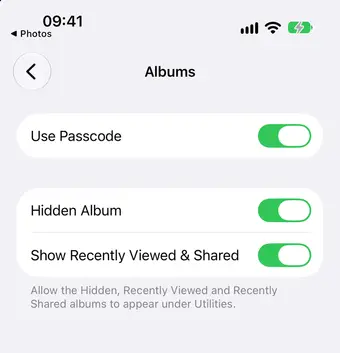
To open the album, tap Collections, scroll to Utilities, tap Hidden, then tap View Album. There’s a full walkthrough in how to hide photos on iPhone.
Good for: a handful of photos you don’t want turning up when you hand your phone to someone. Not good for: anything you’d hate a person with your passcode to see.
How to lock the Photos app on iPhone
Since iOS 18, you can make any app ask for Face ID before it opens, and Photos is one of the apps you can lock. This protects your whole library, not only hidden photos.
- Go to your Home Screen and find the Photos app.
- Touch and hold the icon until the quick actions menu opens.
- Tap Require Face ID (or Require Touch ID, or Require Passcode).
- Tap Require Face ID again to confirm, then authenticate.
From then on, Photos asks for Face ID every time you open it, and locks again after you quit it. Apple says information from a locked app also stays out of places like search, notification previews and Siri suggestions.
To undo it, touch and hold the icon again and tap Don’t Require Face ID.
Two limits are worth knowing. First, you can lock Photos but not hide it, because Apple only lets you hide apps you’ve downloaded. Second, the lock applies to that iPhone only; it doesn’t sync to your iPad or Mac.
Lock pictures inside a note
The Notes app is the one built-in way to password protect photos on iPhone with a password that’s different from your phone’s passcode.
First, choose how locked notes open:
- Open Settings, tap Apps, then tap Notes.
- Tap Password, and choose the account if you have more than one.
- Choose Use Device Passcode, or Use Custom Password to set a separate one. You can also turn on Face ID.
Then lock a note with your photos in it:
- In Notes, create a note and add your photos with the Attachments button.
- Tap the Note Actions button, then tap Lock.
Apple’s rules stop you locking notes with video, audio, PDF or file attachments. Photos aren’t on that list, so this works for pictures but not videos. The note’s title stays visible in the list, so give it a dull one.
Two cautions. The original photos are still in your library, so delete them from Photos and then from Recently Deleted, where Apple keeps them for 30 days. And if you use a custom password and forget it, Apple says it can’t help you get those notes back.
Want to know the day Hideroom is ready?
Hideroom is coming to iPhone. One email when it launches, then we delete your address.
What about Screen Time?
You’ll still see guides suggesting a Screen Time limit on Photos as a makeshift lock. In iOS 27, Screen Time is built around schedules and time allowances for categories of apps, with an optional four-digit Screen Time passcode to stop the settings being changed. It’s designed to limit how long you use apps, not to keep someone else out of your photos. Now that you can lock the Photos app directly, that’s the better choice.
The weakness most of these share
Careful
Look at the “What opens it” column again. The Hidden album and the locked Photos app both open with your iPhone passcode. That’s convenient, but it means anyone who knows your passcode, or watched you type it, gets in. A locked note with a custom password is the only built-in exception, and it doesn’t handle videos.
None of these options can show a different set of photos if someone pressures you to unlock. There’s one Hidden album and one Photos app, so opening them shows everything.
Where Hideroom fits
That’s the gap vault apps fill: photos move out of your library into the app’s own encrypted storage, behind a code that isn’t your phone’s passcode. If you go that way, look hard at how the app backs up, because photos in a vault are often your only copies. Hideroom, coming to iPhone soon, opens each room with a pattern you draw, keeps photos and videos encrypted on the phone, and checks its encrypted backup in your own iCloud after every upload. Each pattern opens its own room, so a second pattern can open a room with nothing private in it. Our security page explains exactly how.
If what you really want is one album that stays private, read how to make a private photo album on iPhone next.
Questions
Can I put a password on the Photos app?
You can make it require Face ID, Touch ID or your iPhone passcode, from iOS 18 onwards. Touch and hold the Photos icon, tap Require Face ID, then confirm. There’s no way to give Photos its own separate password.
Can I lock a single photo on iPhone?
Not on its own. The closest built-in option is hiding it, which moves it into the locked Hidden album. Alternatively, add it to a note and lock the note.
Can I hide the Photos app as well as lock it?
No. Apple only lets you hide apps you’ve downloaded from the App Store. Built-in apps like Photos can be locked but not hidden.
What happens if I forget a Notes password?
If you used a custom password and can’t use Face ID or Touch ID either, Apple says it can’t help you get back into those notes. Resetting the password only applies to notes you lock afterwards. Using your device passcode for Notes avoids this risk.
Written by Zaniar with AI research help, and checked against the sources below on 23 October 2026.How we write guides
Related guides

Hiding photos · 5 min read
How to hide photos on iPhone
Hide photos on iPhone with the Hidden album, lock it with Face ID, and learn what it doesn't protect against. Checked against Apple's guides for iOS 27.

Hiding photos · 5 min read
How to make a private photo album on iPhone
iPhone can't lock a single album, but you have options: the Hidden album, locking Photos, a locked note or a vault app. Here's how each works.

Hiding photos · 5 min read
How to find hidden photos on iPhone
Find the Hidden album on iPhone in four taps, plus what to do if it's missing, won't open, or you meant the hidden apps folder. iPad and Mac too.


Sources
- Delete or hide photos and videos on iPhone, Apple iPhone User Guide, checked 23 October 2026
- Hide photos on your iPhone, iPad, Mac, or Apple Vision Pro with the Hidden album, Apple Support, checked 23 October 2026
- Lock or hide an app on iPhone, Apple iPhone User Guide, checked 23 October 2026
- Lock or hide apps on your iPhone, Apple Personal Safety User Guide, checked 23 October 2026
- Lock your notes on iPhone, Apple iPhone User Guide, checked 23 October 2026
- Set Screen Time Schedules and Time Allowances, Apple iPhone User Guide, checked 23 October 2026
Spotted something out of date? Email support@hideroom.app.