How to find hidden photos on iPhone
Quick answer
Open Photos, tap Collections, scroll down to Utilities and tap Hidden, then tap View Album and unlock with Face ID, Touch ID or your passcode. If Hidden isn’t there, go to Settings > Apps > Photos > Albums and turn on Hidden Album.
Give your private photos a room nobody else can find
Hideroom is coming to iPhone. One email when it launches, then we delete your address.
On this page
Here’s how to find hidden photos on iPhone: they all live in one place, the Hidden album in the Photos app, and on iOS 16 and later it’s locked behind Face ID, Touch ID or your passcode. The steps below are for iOS 27, the current version. If the album isn’t where it should be, or you were actually looking for hidden apps, there’s a section for each.
How to find hidden photos on iPhone
- Open the Photos app.
- Tap Collections at the bottom of the screen.
- Scroll down to the Utilities section and tap Hidden. (Apple’s guide now calls it the Hidden collection; it’s the same thing.)
- Tap View Album, then unlock with Face ID, Touch ID or your passcode.
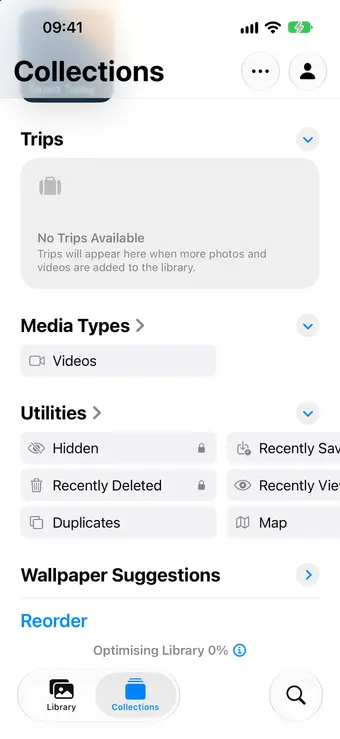
Your hidden photos and videos appear in a grid, like any other album. Recently Deleted sits beside Hidden under Utilities and uses the same lock.
The Hidden album iPhone users see today has looked like this since iOS 16, when Apple added the lock. Before that it wasn’t locked by default, which is why older guides don’t mention unlocking.
If the Hidden album isn’t there
If you scroll to Utilities and there’s no Hidden album, someone (possibly you) has turned it off. Since iOS 14, you can take the album out of the Photos app entirely. The photos are still on your phone; the album is hidden from view.
To bring it back:
- Open Settings.
- Tap Apps, then Photos, then Albums.
- Turn on Hidden Album.
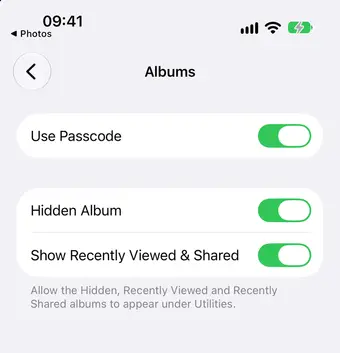
On iOS 18 the switch is called Show Hidden Album and sits on the Photos page itself. On older versions, such as iOS 17, it’s under Settings > Photos.
If the album is there but looks empty, or the photo you want isn’t in it, check these, in order:
- Recently Deleted. Deleted photos stay there for 30 days before they’re removed for good. It’s under Utilities too, and it unlocks the same way.
- iCloud Photos. If the photo was taken on another device, make sure you’re signed in to the same Apple Account everywhere and that iCloud Photos is on: Settings, tap your name, tap iCloud, tap Photos, then turn on Sync this iPhone. Give it a few minutes on Wi-Fi.
- Shared Library. If you use an iCloud Shared Photo Library, tap Collections, tap your profile picture at the top right, and choose Both Libraries so nothing is filtered out.
If the Hidden album won’t open
The album unlocks with the same Face ID, Touch ID and passcode as your iPhone. If Face ID fails, enter your passcode instead.
If you’d rather it opened without asking, go to Settings > Apps > Photos > Albums and turn off Use Face ID (or Use Touch ID, or Use Passcode). We wouldn’t recommend that, as it removes the only lock the album has.
How to see hidden photos on iPhone in your normal library
Viewing a hidden photo doesn’t put it back. To see it in your library again, you need to unhide it:
- Open the Hidden album and unlock it.
- Touch and hold the photo, then tap Unhide.
- For several, tap Select, choose them, tap the More button (three dots), then tap Unhide.
To hide more photos later, see how to hide photos on iPhone.
Want to know the day Hideroom is ready?
Hideroom is coming to iPhone. One email when it launches, then we delete your address.
The other hidden folder on iPhone
A lot of people searching for a “hidden folder” on iPhone are after something else: hidden apps. Since iOS 18 you can hide an app you’ve downloaded, and it moves to a Hidden folder in App Library.
To find it:
- Go to your Home Screen.
- Swipe left past your last Home Screen page to open App Library.
- Scroll to the bottom and tap the Hidden folder, then unlock with Face ID, Touch ID or your passcode.
To see a list of hidden apps, go to Settings > Apps > Hidden Apps. Apple notes that hidden app names can still appear in a few places, including Screen Time, battery settings and your App Store purchase history. Built-in apps such as Photos can’t be hidden this way, though Photos can be locked; see how to lock photos on iPhone.
Finding hidden photos on iPad, Mac and iCloud.com
With iCloud Photos on, a photo you hide on one device is hidden on all of them.
- iPad: open Photos, tap Collections (you may need to tap the sidebar button at the top left first), then tap Hidden under Utilities.
- Mac: the Hidden album is off by default. Open Photos and choose View > Show Hidden Photo Album, then select Hidden under Utilities in the sidebar and click View Album. On macOS Ventura and later it unlocks with Touch ID or your login password.
- iCloud.com: sign in, open Photos, select Hidden in the sidebar, then choose Show Hidden Photos.
What this tells you about the Hidden album
Careful
If you can find hidden photos in four taps, so can anyone who knows your passcode, and so can anyone signed in to your Apple Account on another device. That’s fine for keeping things out of the way. It’s thin protection for photos that would really hurt to have seen, because the Hidden album shares your phone’s passcode and Apple doesn’t describe any separate encryption for it.
Where Hideroom fits
If that’s the gap you’re trying to close, a vault app keeps photos outside your photo library behind a separate code. Hideroom, coming to iPhone soon, opens each room with a pattern you draw and keeps everything encrypted on the phone, with an encrypted backup in your own iCloud that’s checked after every upload. For how to set up a private space with the tools Apple gives you, see how to make a private photo album on iPhone, and for the details of how Hideroom protects what you keep, our security page.
Questions
Why can’t I see the Hidden album on my iPhone?
Most often, the Hidden Album switch has been turned off. Go to Settings, tap Apps, tap Photos, tap Albums, and turn it on. The album then appears again under Utilities in the Collections tab of Photos.
Can I open the Hidden album without Face ID?
Yes. If Face ID or Touch ID doesn’t work, you can enter your iPhone passcode instead. That also means anyone who knows your passcode can open it.
Where is the hidden folder on iPhone?
If you mean hidden photos, they’re in the Hidden album in Photos, under Collections > Utilities. If you mean hidden apps, they’re in the Hidden folder at the very bottom of App Library, which you reach by swiping left past your last Home Screen page.
Do hidden photos show on my Mac and iPad?
If iCloud Photos is on and you’re signed in with the same Apple Account, yes. A photo hidden on one device is hidden on the others too. On a Mac, the Hidden album is switched off by default, so turn it on from the View menu in Photos.
Written by Zaniar with AI research help, and checked against the sources below on 23 October 2026.How we write guides
Related guides
Hiding photos · 5 min read
How to hide photos on iPhone
Hide photos on iPhone with the Hidden album, lock it with Face ID, and learn what it doesn't protect against. Checked against Apple's guides for iOS 27.

Hiding photos · 5 min read
How to lock photos on iPhone
Lock photos on iPhone with Face ID, lock the whole Photos app, or password protect pictures in Notes. Every option for iOS 27, and what each one misses.

Hiding photos · 5 min read
How to make a private photo album on iPhone
iPhone can't lock a single album, but you have options: the Hidden album, locking Photos, a locked note or a vault app. Here's how each works.


Sources
- Hide photos on your iPhone, iPad, Mac, or Apple Vision Pro with the Hidden album, Apple Support, checked 23 October 2026
- If you're missing photos or videos in the Photos app, Apple Support, checked 23 October 2026
- Delete or hide photos and videos on iPhone, Apple iPhone User Guide, checked 23 October 2026
- Lock or hide an app on iPhone, Apple iPhone User Guide, checked 23 October 2026
- Lock or hide apps on your iPhone, Apple Personal Safety User Guide, checked 23 October 2026
Spotted something out of date? Email support@hideroom.app.